
Skriv inn serveradresse, brukernavn og passord i separate felt. Metoden organiserer vanligvis direkte-TV, filmer, serier og EPG automatisk.
IPTV Norge · Oppsettsguide
Oppsettsguide
Velg enheten din og følg trinnene for å installere IPTV Smarters Pro på Firestick, Android, iOS, Smart TV, MAG, Roku og flere plattformer.
Oppdatert2026
Dekning8 enheter
VELG PLATTFORM
Velg enheten din
Velg enheten nedenfor for å se installasjonstrinn og skjermbilder.
Fire OS
Fire TV Stick (FREE APPS)
How to setup IPTV on Fire TV Stick
Privat innlogging
- 01
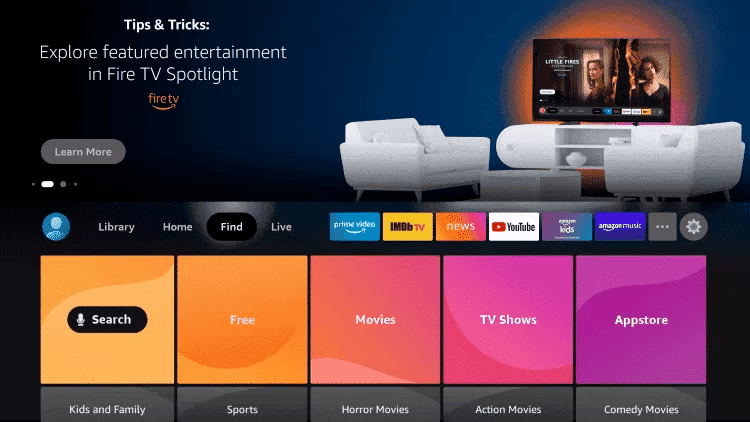
Find
From the home screen of your device, hover over the Find option.
- 02
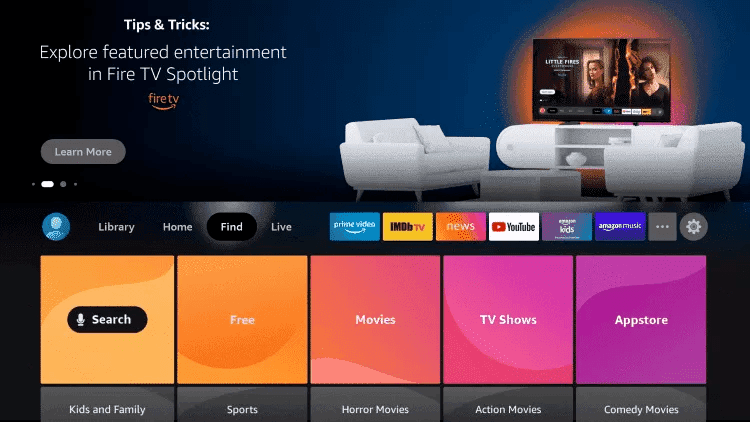
Search
Click Search.
- 03
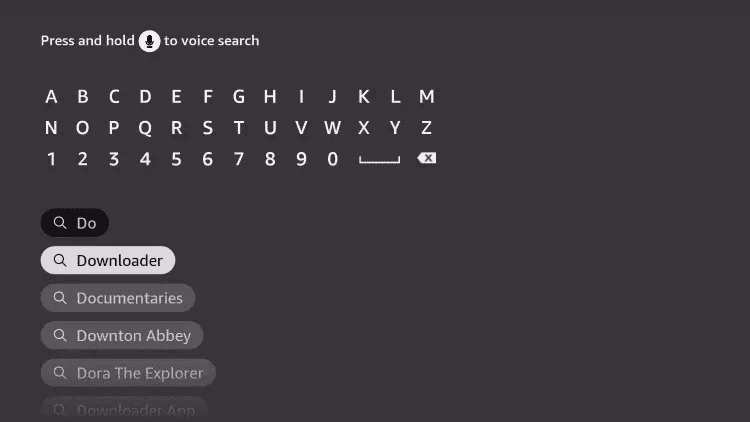
Search Downloader
Search for and select Downloader.
- 04
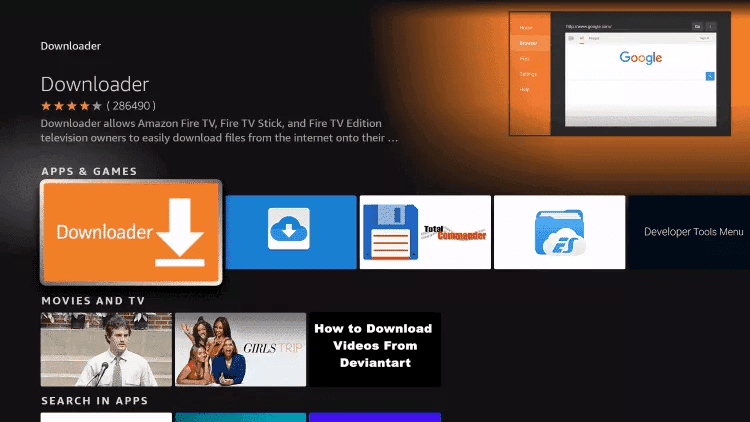
Choose Downloader
Choose the Downloader app.
- 05
Download
Click Download.
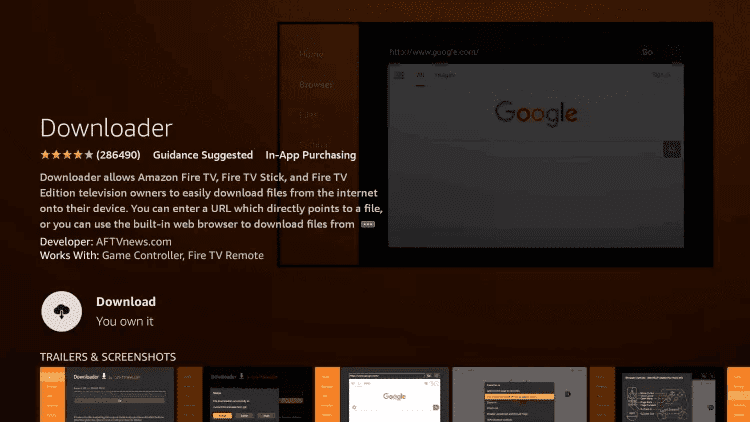
- 06
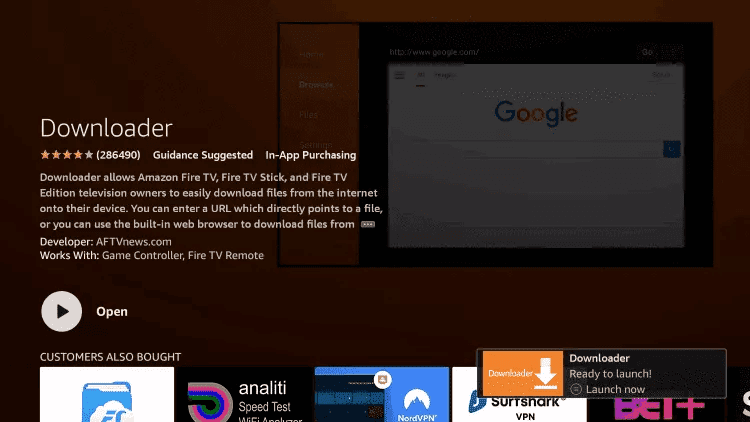
Open
Once the app finishes installing click Open.
- 07
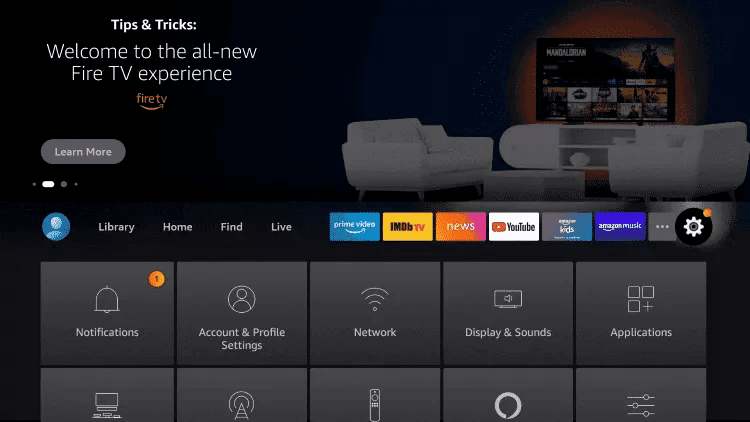
Open Settings
Return to the home screen and open Settings.
- 08
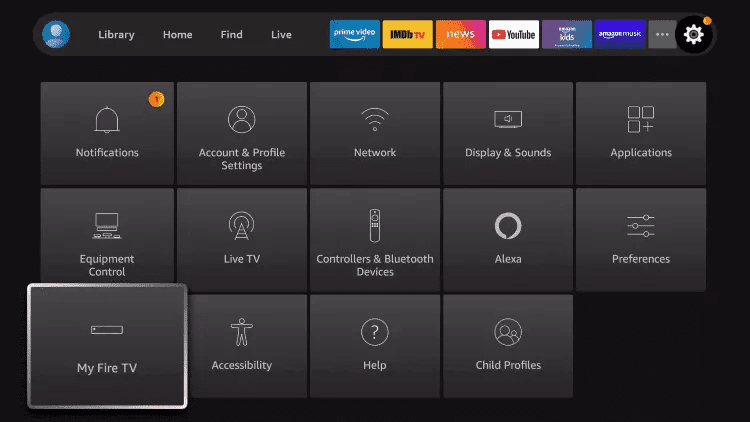
My Fire TV
Click My Fire TV.
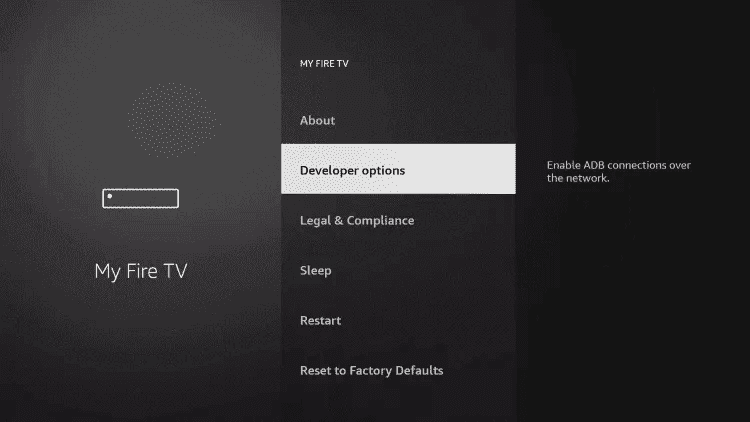
- 09
Developer options
Choose Developer options.
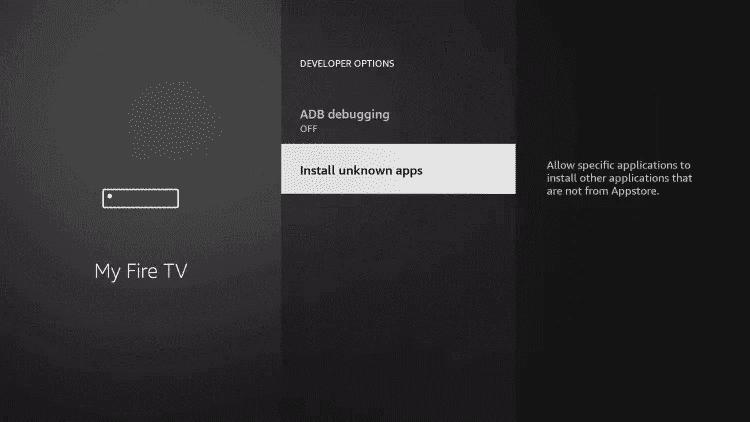
- 10
Install unknown apps
Click Install unknown apps.
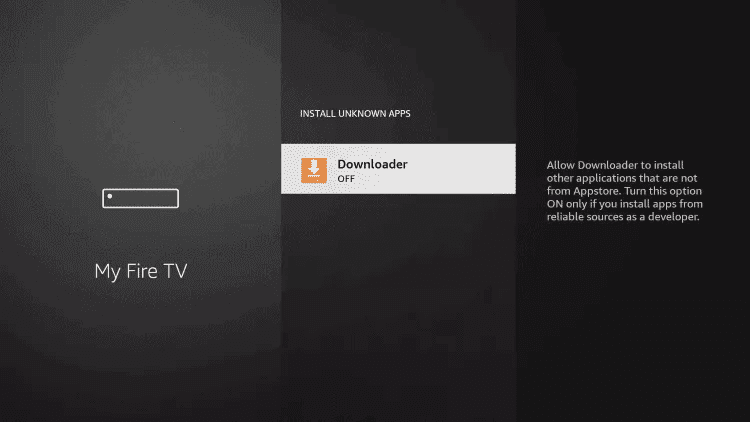
- 11
Select Downloader
Find the Downloader app and click it.
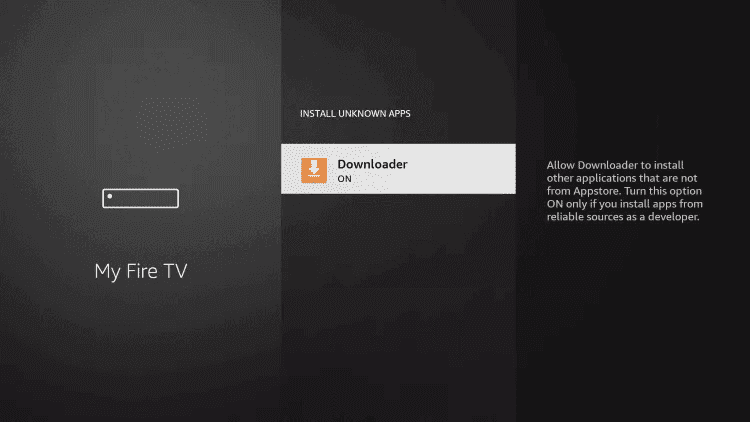
- 12
Turn Unknown Sources on
This will turn Unknown Sources to On for the Downloader app. This will enable side-loading on your device.
- 13
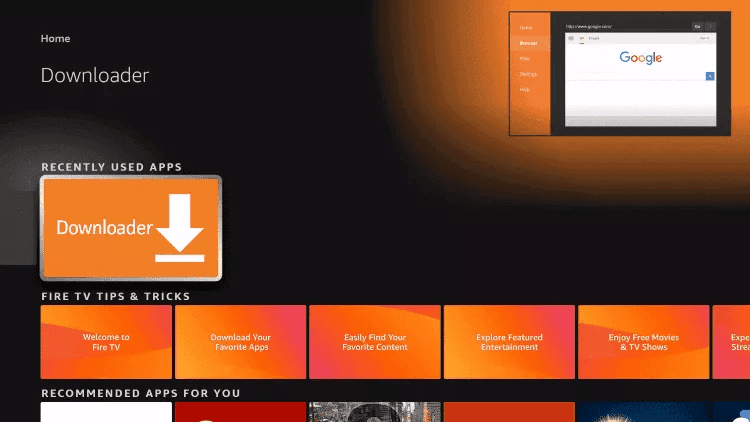
Launch Downloader
Launch Downloader.
- 14
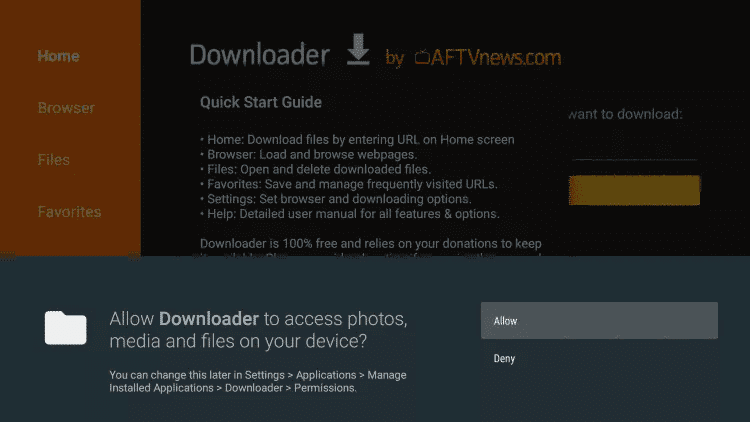
Allow
Click Allow.
- 15
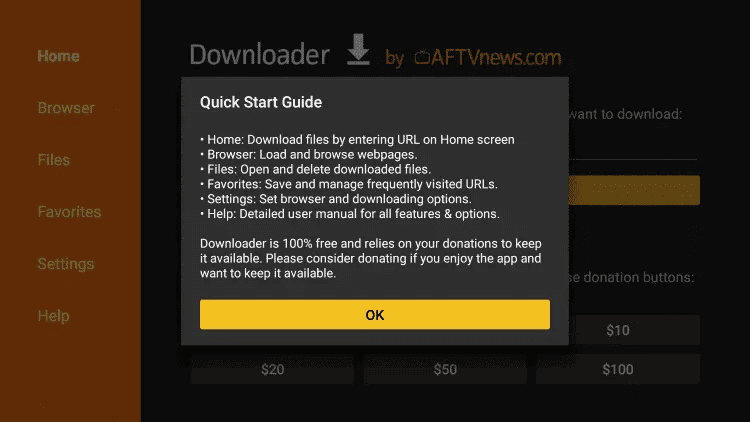
Confirm
Click OK.
- 16
Enter the code
Type the following URL exactly as shown here: 78522 Then click Go.
- 17
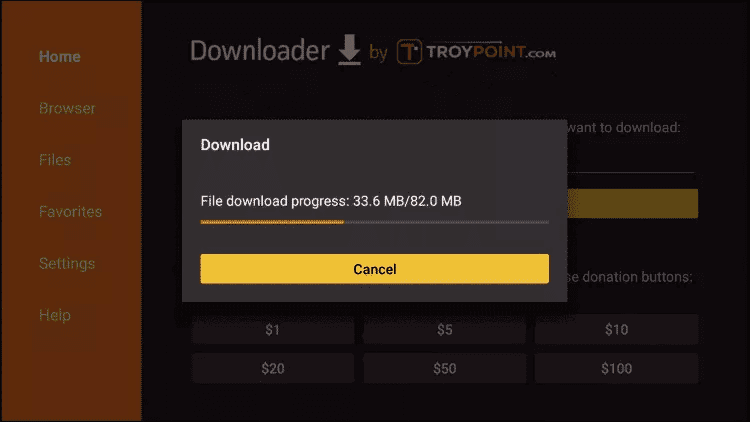
Wait for the download
Wait for file to download.
- 18
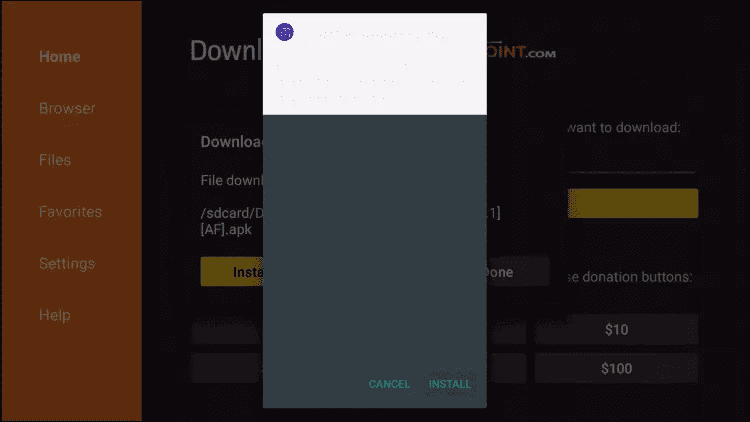
Install
Click Install.
- 19
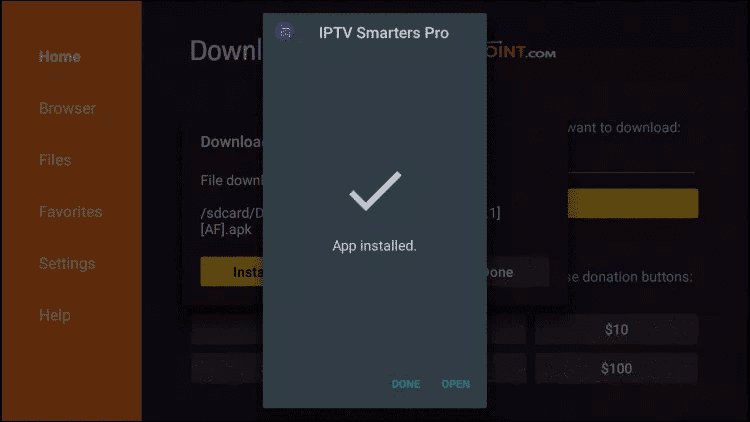
Done
Click Done.
ALTERNATIV SPILLER
Install TiviMate on Fire TV Stick
- 01
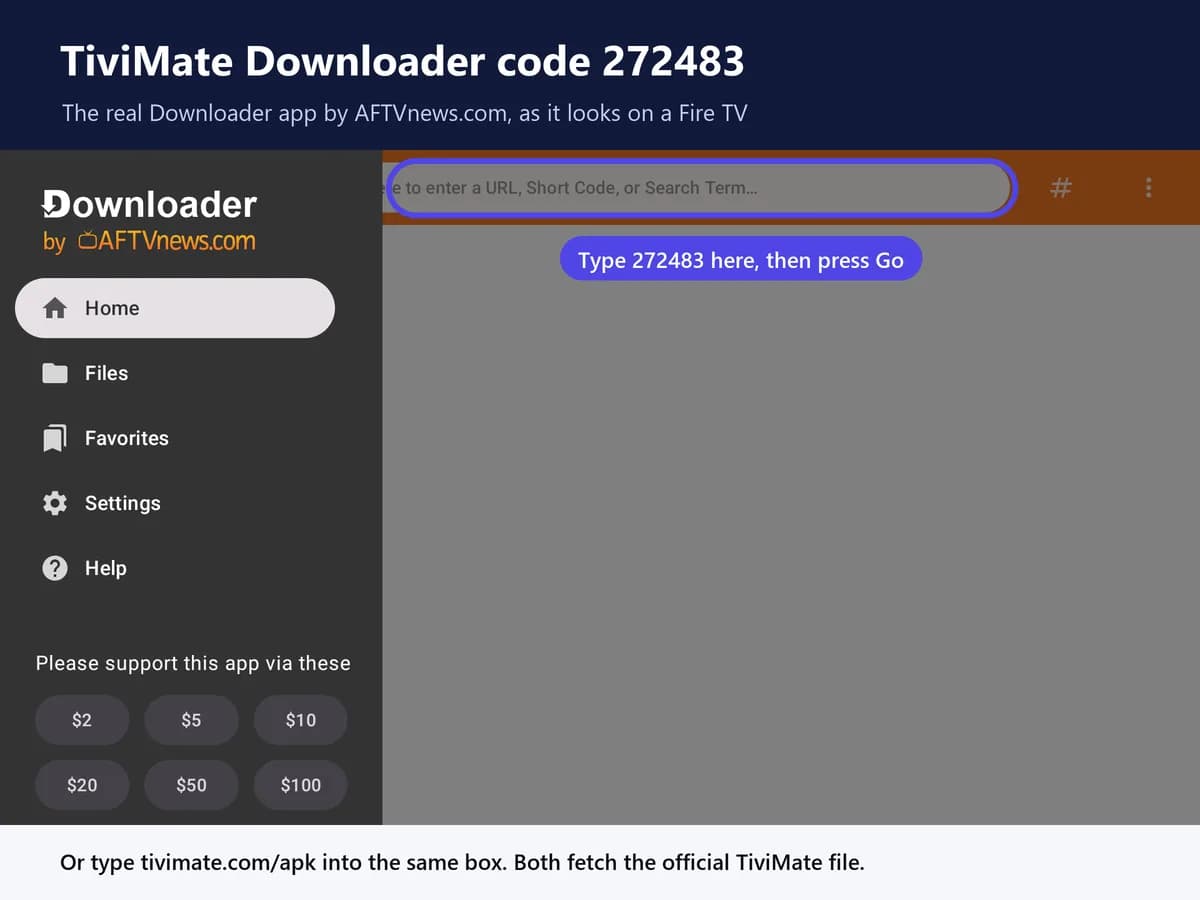
Enter the TiviMate code
Type the official TiviMate Downloader code exactly as shown here: 272483 and click Go.
- 02
Wait for the file
Wait for file to download.
- 03
Install the app
Click Install and once the installation is completed. You can open the app.
- 04
Add Playlist
Click “Add Playlist” then choose “Xtream codes“.
- 05
Enter your login
Enter the login details that we sent you via Email. Please make sure you read the email we send correctly.
APPEN ER BARE SPILLEREN
IPTV Smarters trenger et aktivt abonnement.
Appen kan installeres gratis, men trenger et abonnement med M3U eller kontoinnlogging før kanalene vises.
Lim inn hele den private spillelisteadressen når spilleren spør etter M3U. Hold adressen hemmelig fordi den inneholder kontotilgang.
FØRSTE AVSPILLINGSTEST
Før du endrer avanserte innstillinger
- Bekreft at abonnementet er aktivt
- Kontroller serveradresse og port
- Fjern utilsiktede mellomrom
- Vent på første EPG-synkronisering
- Test en vanlig HD-kanal
- Sammenlign Wi-Fi med Ethernet
Spørsmål om oppsett
Vanlige spørsmål.
Er IPTV Smarters Pro gratis?
Appen kan lastes ned gratis. For å se innhold trenger du et aktivt IPTV-abonnement — appen er bare spilleren.
Hvilke enheter fungerer den på?
Fire TV Stick, Android-telefoner og TV-bokser, iPhone og iPad, Apple TV, Samsung- og LG-TV-er, Windows, Mac, MAG-bokser og Roku.
Hvordan logger jeg inn?
Åpne appen, velg innlogging med Xtream Codes API og skriv inn brukernavn, passord og serveradresse du har mottatt.
Trenger jeg et abonnement?
Ja. IPTV Smarters Pro inneholder ingen kanaler. Du trenger et aktivt abonnement før noe kan spilles av.
Appen er installert, men spiller ikke — hvorfor?
Kontroller at abonnementet er aktivt, skriv inn serveradresse, brukernavn og passord på nytt, og start appen og ruteren på nytt.
Neste steg
Har du appen? Velg abonnementet.
Velg IPTV Norge-abonnement, motta innloggingsdetaljene og start på enheten du foretrekker.